Troubleshooting Errors & Crashes
Last Z: Survival Shooter is a long-session mobile MMO, and like every game in the genre it has its share of crashes, login loops, stuck loading screens and "your purchase didn't deliver" moments. This page collects the fixes that actually work — in the order to try them — for the most common problems players hit.
Before anything else: bind your account. Last Z starts you as a guest, and if you don't link the save to Google, Apple Game Center or an email address, half the fixes below (especially the reinstall ones) will lose your base. See Account & login issues below — do this before you have a problem.
Last verified: 2 June 2026. Steps tested on Android 14 and iOS 17. Menu paths can shift between game patches; if a button has moved, the closest match is almost certainly still under Avatar → Settings.
1. Connection & network errors
"Network error", "Failed to connect to server" and "Connection lost" messages are the most common complaints. The one specific code that does show up in the wild is Connection Error C000 13 — players report it surfaces during patch days and high-traffic events. The same fixes apply to all of them. Run through these in order:
- Toggle airplane mode on for five seconds, then back off. This forces a clean network handshake and fixes most one-off "connection lost" errors instantly.
- Switch between Wi-Fi and mobile data. If one works and the other doesn't, the issue is with your network, not the game.
- Force-close and relaunch the game (steps in section 3). Reconnecting from a cold start clears any half-dead socket.
- Check the Discord
#announcementschannel. Last Z runs scheduled maintenance and the login screen does not always tell you the server is down. - Don't expect a free server selector. Last Z doesn't let you hop states from a settings menu — character data is bound to a state, and moving between states requires the in-game State Migration feature (level-gated, item-gated and on a cooldown). If you want to play on a different state right now, you'll need to create a new character there.
- For chronic lag and march delays: 5 GHz Wi-Fi tends to perform noticeably better than mobile data. Some players run the game on an emulator (LDPlayer, BlueStacks) on a wired PC connection for big battles.
2. Clearing cache (Android & iOS)
Clearing cache is the safe, first-line fix for stutters, missing icons, white textures and stuck loading screens. It does not log you out.
Android — Clear cache (safe): Settings → Apps → Last Z: Survival Shooter → Storage & cache → Clear cache.
Android — Clear storage (destructive): same path → Clear storage. Only use if reinstalling and only after binding.
iOS — Offload App (safe-ish): Settings → General → iPhone Storage → Last Z → Offload App. Keeps your local data, removes the binary. Tap the icon again to redownload.
iOS — Delete App (full wipe): hold the icon → Remove App → Delete App. Bind first.
Last Z's install footprint is around 2 GB after first-time downloads, and patch days routinely push it higher. Keep at least 3 GB free on update days or the patch downloader will silently fail.
Clearing cache from inside the game
Last Z also has its own cache controls under Avatar → Settings — separate from the OS-level options above. Use these first for in-game glitches: they only touch the game's local data, not your phone's storage, and they don't sign you out.
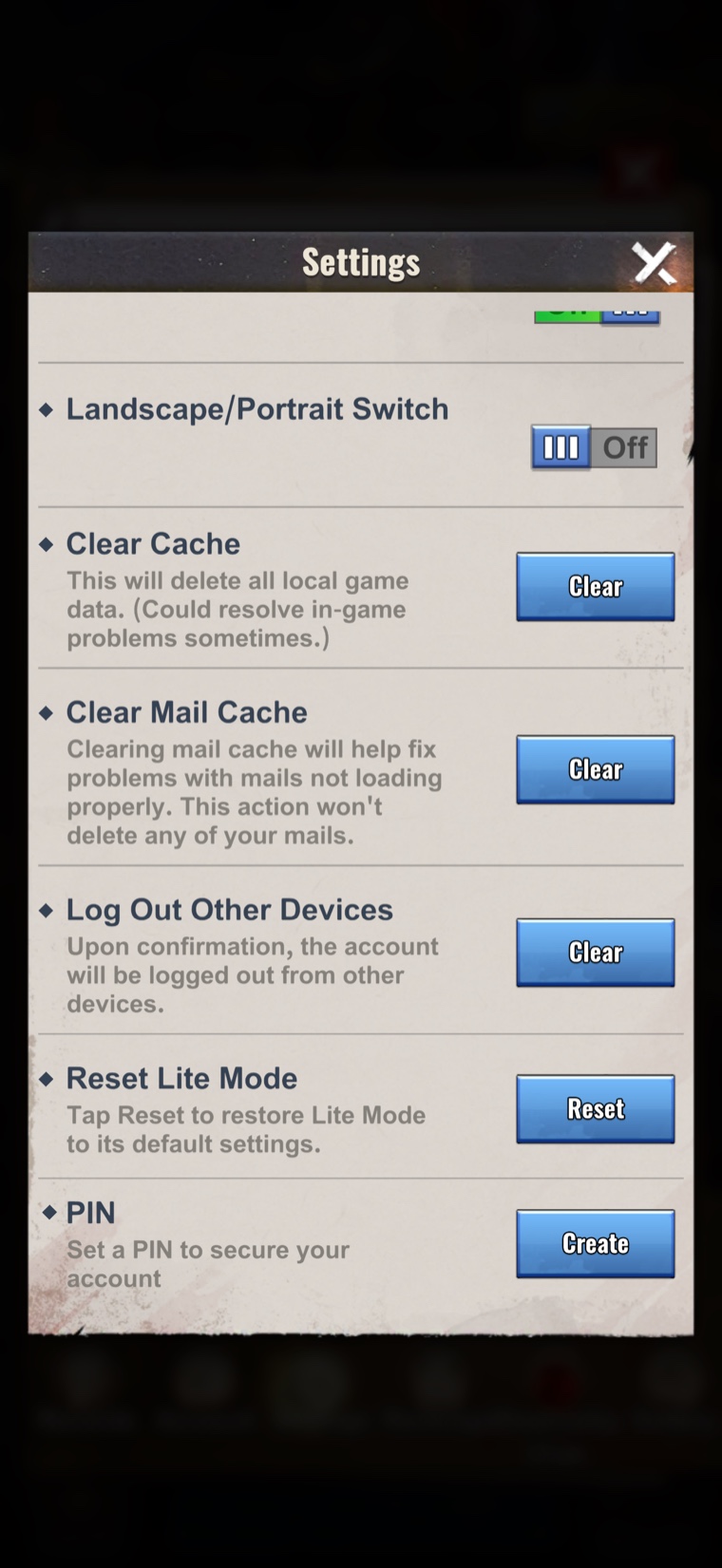
- Clear Cache — described in-game as "This will delete all local game data. (Could resolve in-game problems sometimes.)" Use this for stutters, missing icons, white textures or chat that won't load. Despite the wording, it doesn't sign you out — it rebuilds the local cache only, so it's the safest first move for any in-game oddness.
- Clear Mail Cache — described in-game as "Clearing mail cache will help fix problems with mails not loading properly. This action won't delete any of your mails." Use this if rewards, alliance mails or system notices fail to open or load. Your actual mail is held on the server — only the local copy is rebuilt.
If you scroll the same Settings panel you'll also find Log Out Other Devices (see section 4), Reset Lite Mode and a PIN option that adds an extra account-security step at login. Worth setting the PIN.
3. Freezing, crashing & force-closing
If the screen is frozen or you can't get past the loading bar, force-close before anything else.
- Android force-close: swipe up from the bottom and hold to show recent apps, then swipe Last Z's card off the top. Or Settings → Apps → Last Z → Force stop.
- iOS force-close: swipe up from the bottom and pause in the middle of the screen, then flick Last Z's card upward.
- Restart the device. The single most-recommended fix in App Store developer replies. Frees RAM and clears GPU state.
- Reinstall (last resort). Bind your account, uninstall, reinstall, log back in via the bound provider.
Store-stated minimum specs: Android 7.0+ with 3 GB RAM and ~2 GB free, iOS 12 or later. Devices on the floor regularly crash on the world-map zoom-out and during big rallies. Close other heavy apps before opening Last Z if you're near the limit.
4. Account & login issues
This is the highest-risk area in Last Z, because the game uses guest accounts by default. Wipe data without binding and your progress is gone — there is no self-service recovery.
- Email — email + password. Works on both Android and iOS.
- Google (Play Games) — Android only.
- Apple Game Center — iOS only. Make sure you're signed into Game Center in your iOS Settings before tapping the button in Last Z.
Pick whichever option fits your platform and sign in. Takes 30 seconds and saves an account that the rest of this guide assumes you can recover from.
- "Account already logged in elsewhere" — force-close on the other device, wait 60 seconds, then sign in again. Last Z also has a dedicated Log Out Other Devices button in Avatar → Settings (see the screenshot in section 2) that terminates other sessions on your account on confirmation. If a stranger is on your account, run that button, then contact in-game Customer Service (section 8) with your UID and a screenshot of any in-app purchase receipt.
- Switching accounts — Avatar → Settings → Account has a switch / log-out option. Always bind the new account before you log out of it.
- Unbinding an email — players have to do this before they can re-bind the same email to a new character (e.g. for farm accounts). The option lives in the same Account panel; if it's missing, raise a ticket via Customer Service.
- Lost account recovery — there is no self-service. Submit a ticket through in-game Customer Service (or email support@last-z.com) with your UID, state number, character name, approximate creation date, and any store receipt IDs. Response times can be a week or more.
- UID for redeem codes: Avatar → Settings → Copy ID. Paste at last-z.com/giftCenter to redeem event codes.
5. UI & display problems
- Black screen on launch: clear cache (section 2), then restart the device. If still black, reinstall (after binding).
- Stuck on the loading bar: usually a corrupted asset download. Clear cache, relaunch, and let the in-game asset downloader re-run on next launch. On Wi-Fi this can take several minutes — don't kill it early.
- White textures or missing icons: asset bundles failed to download. Clear cache and relaunch so the game re-fetches its texture packs.
- UI scaling on tablets and foldables: Last Z doesn't auto-scale cleanly on every aspect ratio. Cycling between portrait and landscape, or briefly toggling system DPI / display zoom, usually re-flows the UI.
6. Battery drain, overheating & performance
Last Z is hard on phones because the world map keeps animating even when nothing's happening. The biggest savings come from the phone, not in-game toggles:
- Don't leave it running idle on the world map. If you're farming or queued for a build, exit to the home screen — Last Z holds the GPU active even when you're not touching it.
- Mute background music and sound effects when you're AFK; the audio engine alone is a noticeable battery cost.
- Android battery optimisation: Settings → Battery → app usage → Last Z → Optimised. Do not set it to "Restricted" — that breaks alliance push notifications, and you'll miss rally pings.
- iOS Background App Refresh: Settings → Last Z → toggle off when you're not actively playing.
- For sustained overheating, the community standard fix is to play on an emulator (LDPlayer, BlueStacks) with the same bound account — desktop cooling makes the issue disappear and you get to throttle the frame rate at the emulator level.
7. Payment & purchase issues
- Pack didn't deliver: wait 10 minutes — packs arrive via system mail. If still missing, Avatar → Settings → Customer Service → new ticket with your store receipt ID (Google Play
GPA.xxxx-xxxx-xxxx-xxxxor App Store receipt screenshot). - Charged but the game says it failed: the platform owns the refund. Google Play → Order history → Report a problem. Apple → reportaproblem.apple.com. Rivergame cannot reverse store charges directly.
- Avoid third-party top-up sites. They carry no refund guarantee and have been linked to account bans.
8. Bug reporting & getting help
For anything you can't fix yourself — especially account or payment problems — there are several channels, fastest first:
- In-game Customer Service: Avatar (top-left) → Settings → Customer Service. This is the only channel that can directly fix your account or restore a missing pack.
- Official email: support@last-z.com. Best for account recovery when you can't log in at all.
- Official Discord (discord.gg/last-z): check
#announcementsfirst for ongoing outages, then ask in the help channel. - Official Facebook page (facebook.com/LastZSurvivalShooter): outage announcements and event news.
- Community Facebook groups: useful for confirming whether an issue is widespread or just you.
Whatever channel you use, include the following in your first message — tickets without these get ignored:
- Your UID and state (server) number
- Device model and OS version
- The time of the incident in your timezone (or server time)
- A screenshot or short screen recording
- Exact steps that reproduce it, if you can reproduce it on demand
Note: Last Z is developed by Florere Game (under the Rivergame label). The official site is last-z.com; everything else is community or third-party.
Frequently asked questions
- How do I bind my Last Z account?
- Open Avatar → Settings → Account. Last Z offers Email plus Google (Play Games) on Android, or Email plus Apple Game Center on iOS. Sign in with one — it takes about 30 seconds and is the only reliable way to recover your save after a reinstall.
- How do I clear cache in Last Z without losing my progress?
- Open Avatar → Settings inside the game and tap Clear Cache. It rebuilds local game data only and doesn't log you out. For deeper cleanup on Android, use Settings → Apps → Last Z → Storage → Clear cache (safe). Never Clear data / Clear storage unless your account is bound.
- What is Connection Error C000 13 in Last Z?
- It's the most common Last Z connection error, usually surfacing during patch days and high-traffic events. Fix it with the standard network steps: toggle airplane mode, switch Wi-Fi and mobile data, force-close the game, then check the official Discord
#announcementschannel for ongoing maintenance. - How do I recover a lost Last Z account?
- There is no self-service recovery. Use in-game Customer Service (Avatar → Settings → Customer Service) or email support@last-z.com with your UID, state number, character name, approximate creation date, and any in-app purchase receipt IDs. Response times can be a week or more.
- Why does Last Z keep crashing on my phone?
- Most crashes come from low memory. Restart the device, close background apps, and check you're above the store-stated minimums (Android 7.0+ with 3 GB RAM, iOS 12 or later). If it still crashes, clear cache from inside the game (Avatar → Settings → Clear Cache) before considering a reinstall.
- How do I redeem Last Z gift codes?
- Easiest path: in Last Z, tap your Avatar → Doomsday Club — this opens the redemption portal and logs you in automatically. Paste the code and submit; rewards arrive via in-game mail within a few minutes. If you can't get into the game, copy your UID from Avatar → Settings → Copy ID and redeem in a browser at last-z.com/giftCenter. We also keep a running log of known codes on the Gift Codes tool.
Disclaimer
This guide is community advice published by ztools.co.uk and BD Digital Creations (BDDC), based on the best available information at the time of writing. Following these steps is entirely at your own risk. Neither ztools.co.uk nor BD Digital Creations accept any liability for loss of game progress, account access, in-app purchases, personal data, device damage or any other direct or indirect damages arising from following — or attempting to follow — anything on this page. Always bind your account first, and verify each step against your in-game UI before committing to it. For account or payment issues, the only authoritative channel is in-game Customer Service or support@last-z.com.
Related guides
- Shields — keep your base safe while you troubleshoot.
- Events Schedule — confirm whether your issue is a maintenance window.
- Event Cycle Tracker — live status for the diamond-spend rotation, so you don't waste a 90% Off on a broken purchase.